 SoCo Monitor
Put SoCo Monitor on your Home Screen
SoCo Monitor can sit right on your Home Screen, next to your other apps — one tap and you’re looking at river levels, power outages, and fire weather. There’s no App Store and nothing to download. It takes about a minute.
On an iPhone, this is also how you can get SoCo Monitor alerts — Apple only lets a website send notifications once it’s on your Home Screen.
Start in Safari. These steps work in Apple’s Safari browser. If you opened SoCo Monitor from the Facebook app, that browser doesn’t have the button we need — in Facebook, look for Open in Safari in the menu, then come back to these steps. Using the Chrome app instead? That works too, just a little differently — see Can’t find the button? below.
The steps
1 Open socomonitor.com in Safari
You should see the SoCo Monitor home page, like this:
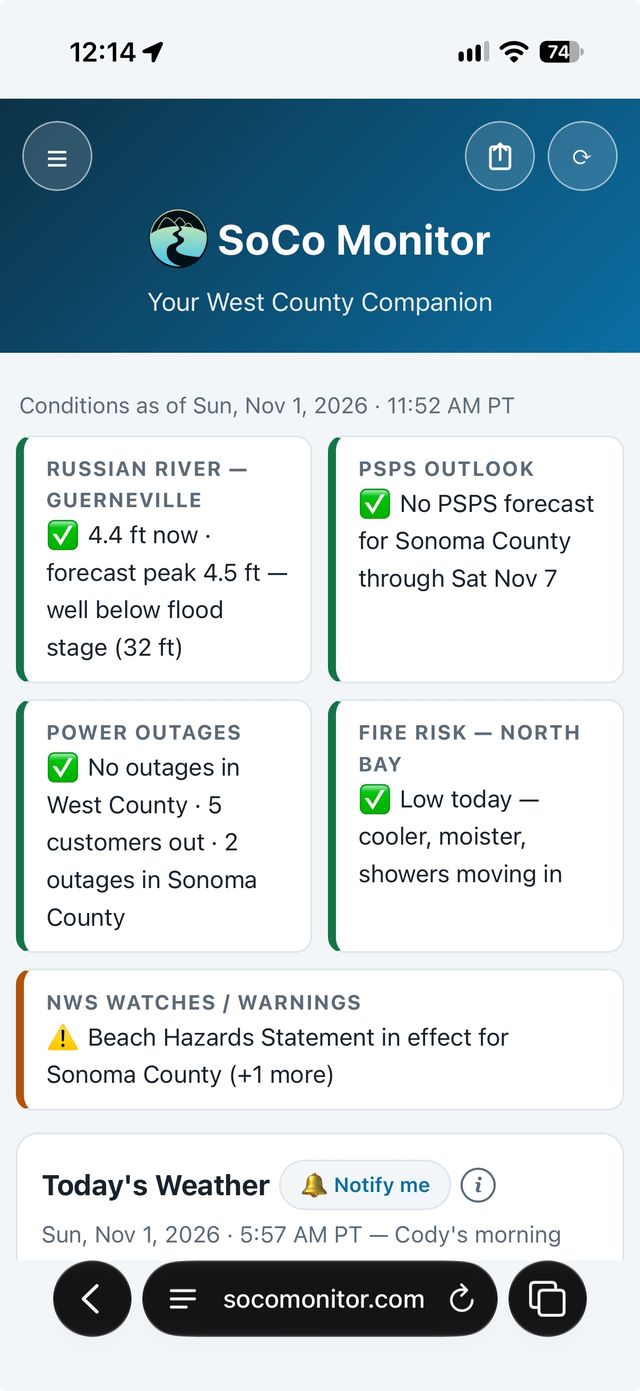
2 Tap the menu button
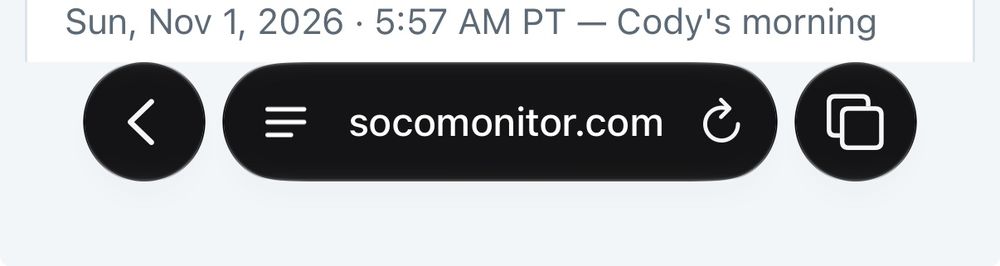
At the very bottom of the screen is Safari’s address bar. Tap the three lines on the left side of it — circled in orange here:
3 Tap Share
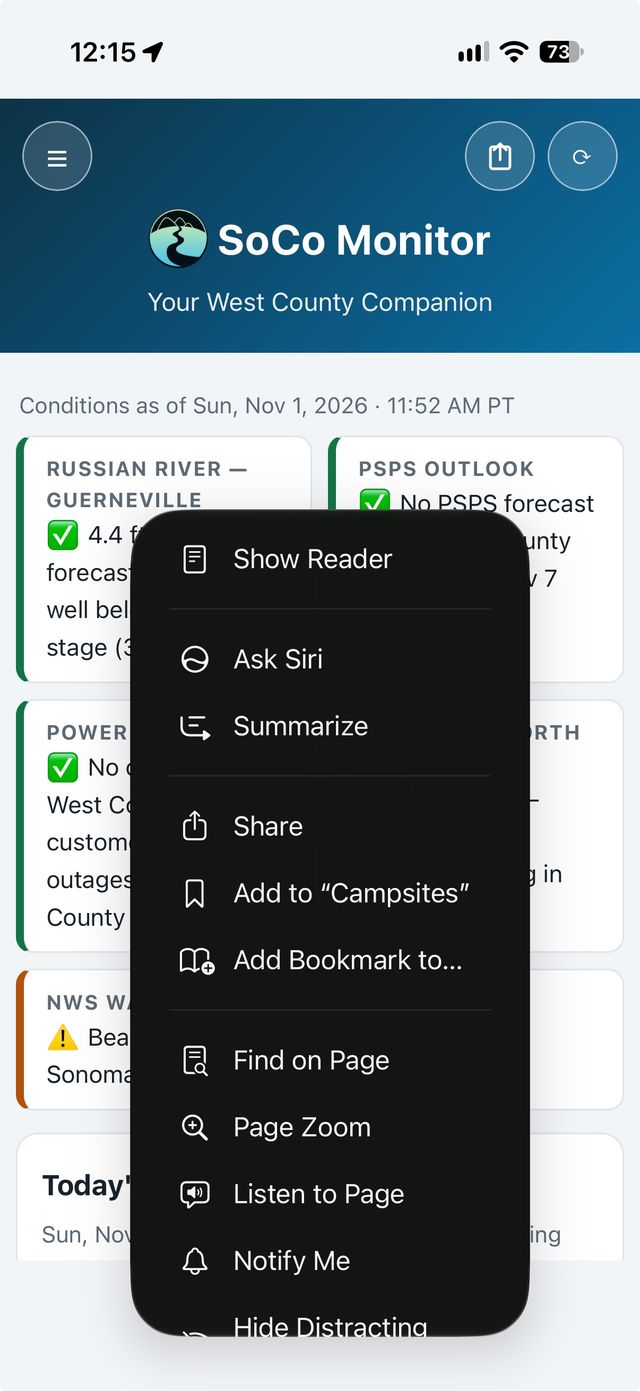
A menu pops up. Tap Share — the square with an arrow pointing up, circled here:
4 Tap View More
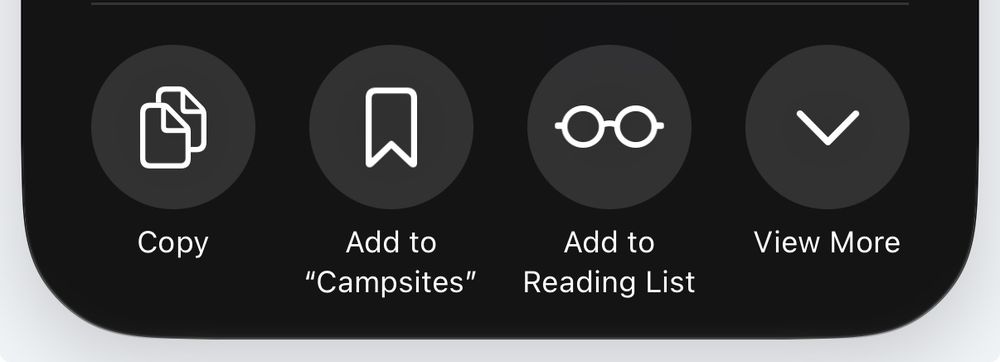
A row of round buttons appears near the bottom. Tap View More — the down-arrow on the right, circled here:
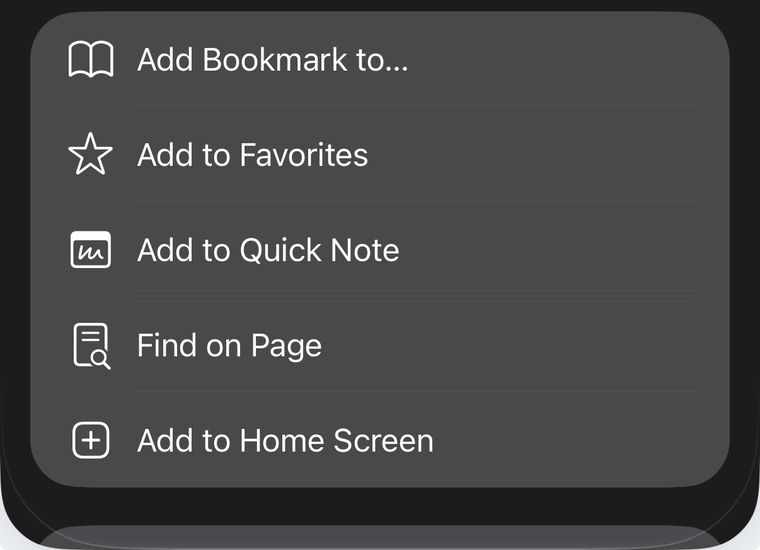
5 Tap Add to Home Screen
The list grows. Near the bottom, tap Add to Home Screen — it has a + in a square, circled here:
6 Tap Add
One last screen shows the SoCo Monitor name and icon, just as they’ll appear. Tap Add in the top-right corner. That’s the final tap!
✅ You’re done! The SoCo Monitor icon is on your Home Screen now. Tap it any time — it opens just like an app, straight to the latest conditions.
Want alerts, too?
Open SoCo Monitor from your new Home Screen icon, tap Get Alerts at the top of the page, and pick the alerts you’d like. If your phone asks “Allow notifications?” — tap Allow. That’s what lets river, fire, and outage alerts reach you.
Can’t find the button?
Apple has moved this button around over the years, so don’t worry — it’s not you. Four things cover nearly everyone:
If you’re using Chrome, not Safari
That works too — the button is just in a different place. In Chrome, tap the Share icon (the square with an arrow) at the right end of the address bar at the top of the screen — or tap the ⋯ menu and choose Share. Then scroll down the list and tap Add to Home Screen, and finally Add. If it isn’t in Chrome’s list at all, switch to Safari and follow the steps above — Safari always has it.
If your Safari looks different from the pictures
On older iPhones there’s no menu-button step: tap the Share button — the square with an arrow pointing up — right in Safari’s toolbar, then scroll down the list and tap Add to Home Screen. The extra View More tap in our pictures is new this year.
If the list doesn’t show “Add to Home Screen” at all
Scroll to the very bottom of that list and tap Edit Actions. Tap the green + next to Add to Home Screen, then tap Done. It’ll be in the list from then on — go back to step 3 above.
If you’re inside another app
Inside the Facebook app (and most other apps’ built-in browsers) the button simply isn’t there. Look for Open in Safari in that app’s menu, then follow the steps on this page.
On an Android phone
Open socomonitor.com in Chrome. Tap the three dots in the top-right corner, then tap Add to Home screen (some phones say Install app), then Add. Same result — an icon on your Home Screen.